PDF vs Word: The Format You Choose Is Silently Undermining Your Professional Image
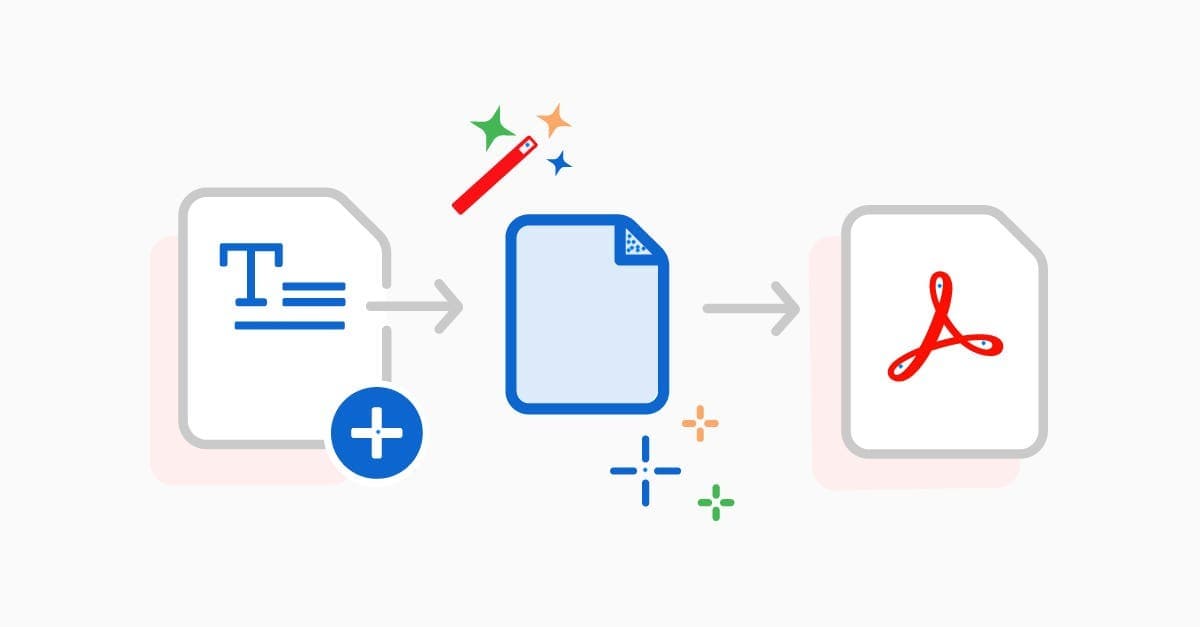
Sending a Word file when you should have sent a PDF — or vice versa — sends signals you don't intend. Here's the exact decision framework that eliminates document format mistakes forever.
The Format Decision That Costs People Credibility
A hiring manager opens your resume. It's a .docx file. On their computer, the fonts aren't installed, a paragraph shifts, the layout breaks. Your carefully designed CV looks like it was formatted by someone who doesn't care about presentation.
You do care. But you sent a Word file.
Conversely: a teammate needs to edit a shared proposal draft. You send them a PDF. They reply asking for the editable version because they can't make changes. You look like you don't understand basic collaboration.
The PDF vs Word decision is not a matter of preference. It's a professional signal. Here's the exact logic to get it right every time.
When PDF Is the Correct Choice
The document is finished and should not be changed
PDFs are the "sealed envelope" of digital documents. When you send a PDF, you are implicitly saying: this is the final, authoritative version. Recipients can't accidentally (or deliberately) alter the content. This is essential for:
- Contracts and legal agreements
- Invoices and financial documents
- Official reports and proposals sent to clients
- CVs and resumes submitted to employers
- Any document where version integrity matters
Your formatting must look identical on every device
Word documents are not portable in the way most people assume. They render differently based on the recipient's version of Word, the fonts installed on their computer, their default paper size (A4 vs Letter), and even their printer driver. A document that looks perfect on your screen can completely break on someone else's.
PDFs are rendered exactly the same on every device, every operating system, every browser, and every printer. If you care about how your document looks to the recipient — always use PDF for sharing.
The document is going to someone outside your organization
Internal documents stay within a known software environment. External documents go to unknown environments. The safest assumption is that an external recipient has different software than you. PDF is the only safe format for external sharing.
Legal, compliance, or archival requirements exist
Government agencies, courts, and regulated industries almost universally require PDF. PDF/A (the archival variant) is specifically designed for long-term document preservation — it embeds all fonts, color profiles, and content so the document can be rendered identically decades later.
When Word Is the Correct Choice
The document is a draft that needs collaborative editing
Real-time co-editing with Track Changes, comments, and version history is Word's native environment (especially via Microsoft 365 or Google Docs with .docx compatibility). If the document is still being worked on by multiple contributors — it belongs in Word.
You're sharing a template or form that others will fill out
Word files are the correct choice for anything that will be used as a starting point. Letter templates, application forms designed for basic word processing, document starters — these should all be Word files so recipients can actually work with them. (For fillable PDF forms that need to remain fixed in layout, use a proper form PDF instead.)
The recipient needs to import the text into another system
Copying from PDFs into other applications (content management systems, databases, email editors) often produces garbled text with encoding artifacts. Word files copy cleanly into almost any application.
You're sending a draft for peer review with tracked changes
Word's Track Changes and comment system is genuinely unmatched for editorial review. Use Word through the review cycle, then convert the finalized, accepted version to PDF for the permanent record.
The Decision Framework (Use This Every Time)
Ask these questions in order:
1. Is this document finished?
- Yes → Use PDF
- No → Use Word
2. Will someone outside my organization receive this?
- Yes → Use PDF
- No → Consider Word if collaboration is needed
3. Does the layout and design need to look exactly right?
- Yes → Use PDF
- No → Either format works
4. Do legal, compliance, or signature requirements apply?
- Yes → Use PDF (always)
- No → Based on questions 1–3
The Most Common Mistakes (And Their Hidden Costs)
Sending a CV as a .docx Your layout breaks on the hiring manager's computer. They see a different document than you designed. Cost: first impressions you can't undo.
Sending a client proposal as a .docx The client can accidentally modify pricing, terms, or scope. Even without bad intent, an accidentally-edited Word document creates legal ambiguity. Cost: potential contract disputes.
Sending a draft for review as a PDF Your reviewer can't add Track Changes or leave comments in context. They reply in a separate email listing "changes to the third paragraph." You play document archaeology. Cost: 30 extra minutes of revision reconciliation.
Sending a fillable form as a PDF when Word was needed Recipients can't actually fill it in without special PDF software. They print it, fill it by hand, and scan it. Cost: your form process breaks down for most recipients.
Converting Between Formats: The Right Tools
Since both formats are needed at different stages, fluid conversion is essential:
Editing a PDF you received → Word Use PanaPDF PDF to Word. The conversion preserves layout, tables, and formatting so you get an actually editable document, not a wall of unstyled text.
Finalizing a Word draft → PDF Use PanaPDF Word to PDF. This produces a properly formatted PDF that looks exactly like your Word document was intended to look.
The standard professional workflow: Draft in Word → Review in Word → Finalize → Export to PDF → Sign (if needed) → Send
Format as a Professional Signal
The next time you're about to send a document, spend 10 seconds asking: Is this done? Is this going outside my organization? Does the layout matter? If any answer is yes — convert to PDF first. It takes 30 seconds and it communicates that you understand how professional documents work.
That signal compounds over time.